Section outline

    • Introduction

      Welcome to the "How to integrate BUKU in your Moodle" course! This course will guide you through the step-by-step process of incorporating BUKU’s powerful learning platform into your Moodle environment, maximizing your platform's capabilities for an enhanced educational experience.

      With BUKU’s custom OEmbed Filter plugin, you’ll be able to seamlessly integrate interactive content directly into Moodle. By the end of this course, you will have all the knowledge needed to install, configure, and utilize the BUKU plugin to its full potential, bringing new resources and dynamic functionality to your courses.

  • This is a step-by-step guide to integrate BUKU in your Moodle.

    • Step 1: Download the BUKU OEmbed Filter Plugin

      To begin, download the BUKU OEmbed Filter plugin from the official repository or the provided link below.

    • Step 2: Upload the Plugin to Moodle

      1. Navigate to your Moodle dashboard and go to Site administration.
      2. Select Plugins from the sidebar and then Install plugins.


    • Step 3: Install the Plugin from ZIP

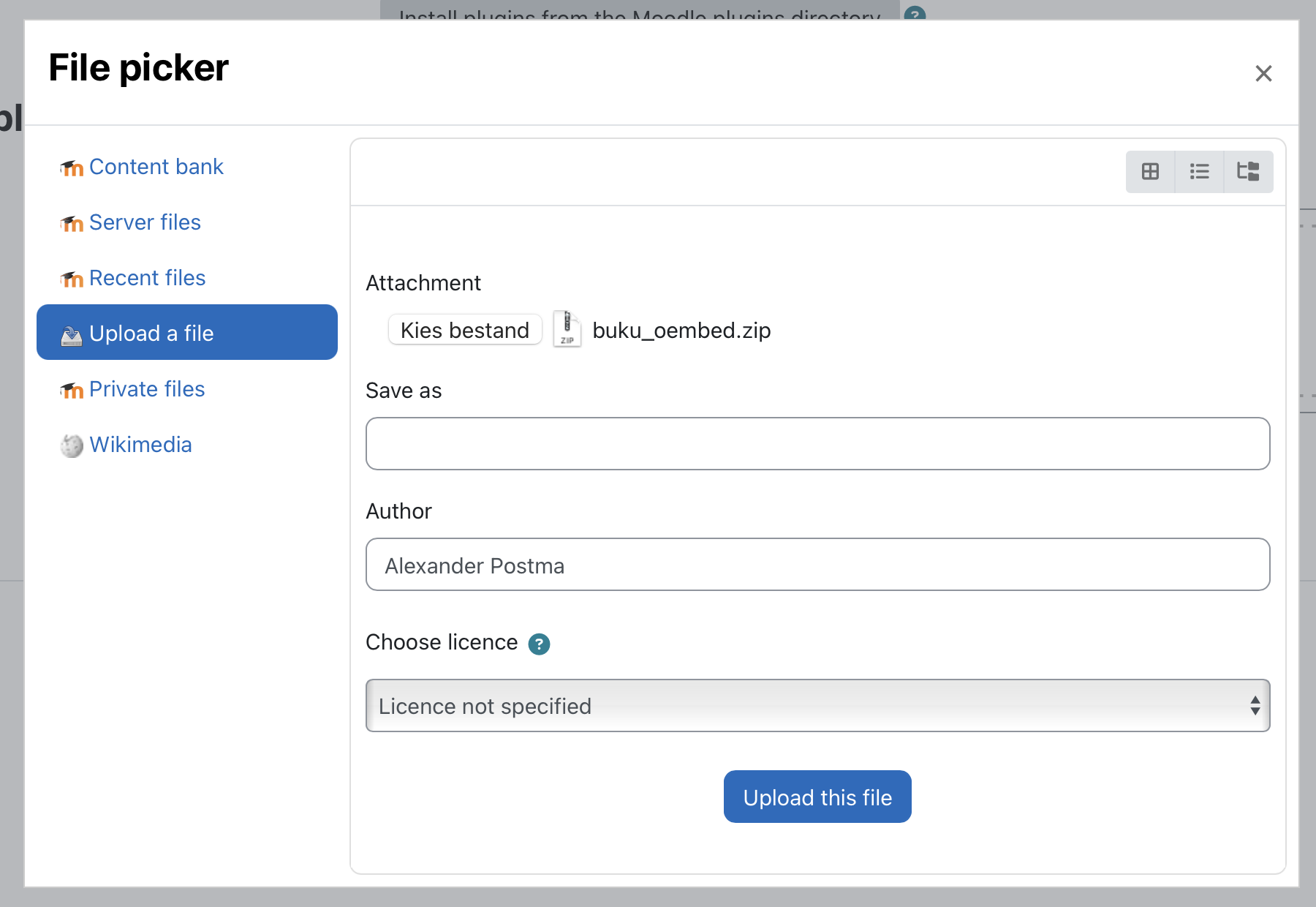
      1. Under Install plugin from ZIP file, click to browse for the downloaded BUKU plugin ZIP file on your computer.
      2. Select the plugin ZIP file in the ZIP package field.
      3. Click Install plugin from the ZIP file.
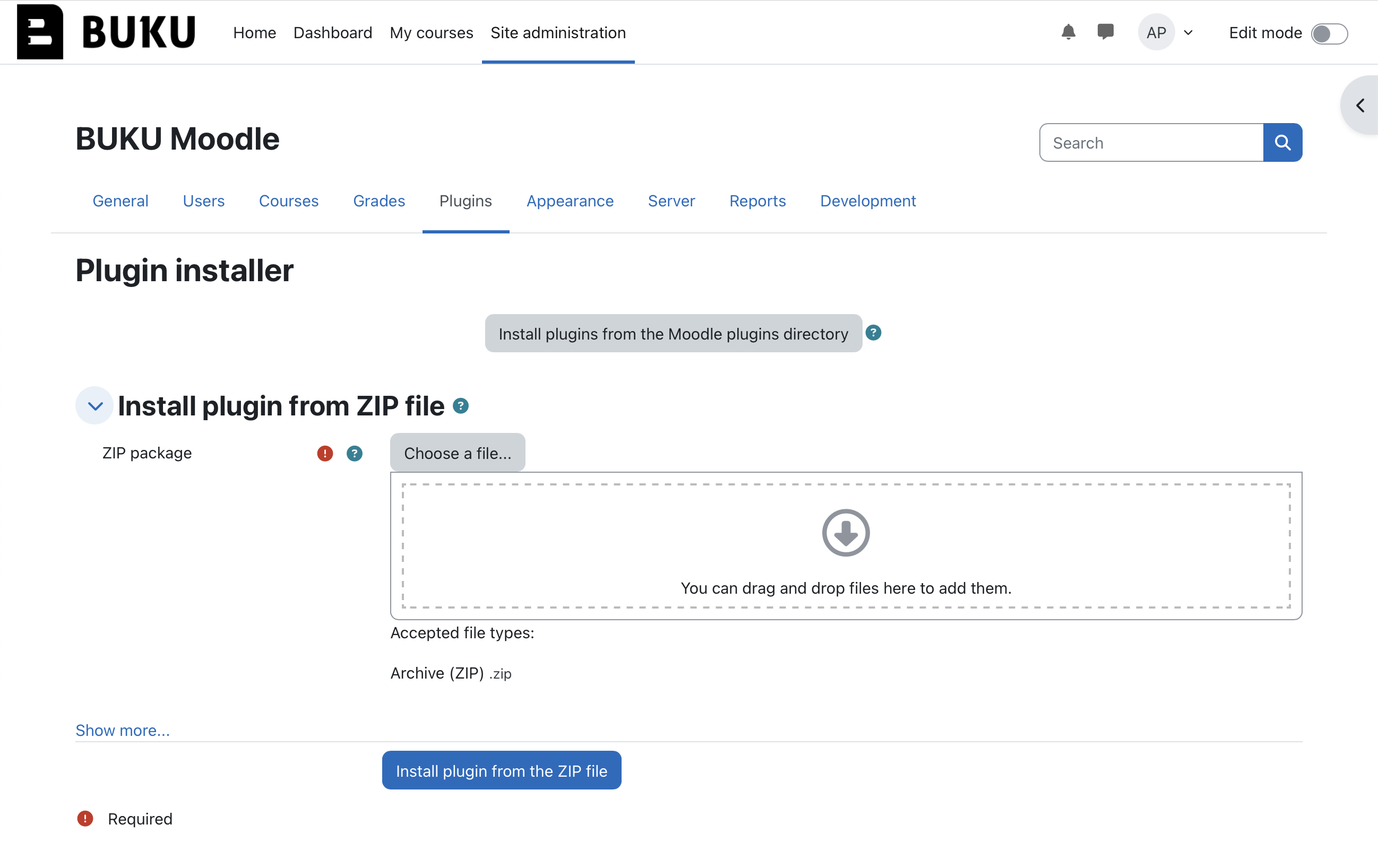
      Plugin installer for step 3.

      File picker

    • Step 4: Validating and installation

      After selecting the ZIP file, Moodle will automatically validate the plugin.

      • When prompted, click Continue to proceed.
      • On the following screen, select Upgrade Moodle database now to complete the installation.
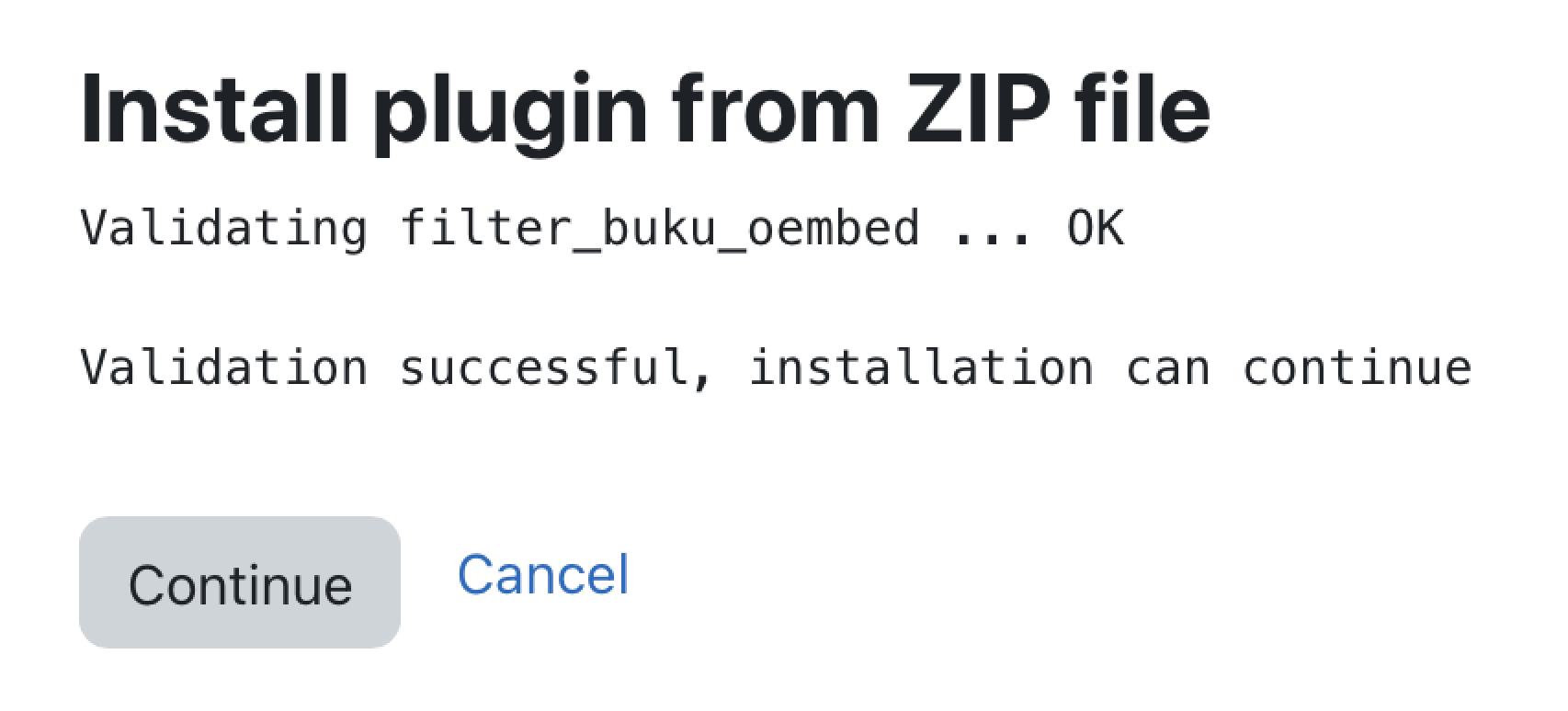
      Validating

    • Step 1: Go to https://buku.app

      Visit https://buku.app in your browser and login with your BUKU account.

    • Step 2: Go to the book you want to embed

      Once logged in to your BUKU account, locate the Search bar at the top of the page. Type in the title, author, publisher or keywords related to the book you want to embed in your Moodle course. Review the search results to find the exact book you need. When you find the correct title, hover on the book and click on the ▼, and click on Details.

    • Step 3: Copy the URL

      With the book details page open, go to your browser’s address bar and locate the full URL. This URL will serve as the OEmbed link for integrating the book into Moodle. The format should look similar to this: https://buku.app/details/{book_id}, where {book_id} is a unique identifier for the specific book.

      Carefully highlight the entire URL and copy it to your clipboard (you can typically do this by right-clicking and selecting Copy or using the keyboard shortcut Ctrl+C on Windows or Command+C on Mac). Ensure the URL is complete and accurate, as this link will directly embed the chosen book within Moodle for easy access by users.

    • Step 4: Add the link to a text and media area in Moodle

      Now that you have the book URL copied, navigate to the Moodle course where you want to embed the book.

      1. In the course, add a Text and media area where you’d like the book to appear.
      2. Paste the BUKU URL directly into the text area (using Ctrl+V or Command+V to paste).
      3. Click Save and return to course to confirm.

      Moodle will automatically recognize the BUKU link and display the book using the OEmbed format, allowing students to interact with the content directly within the course.

    • Example

    • Step 1: Go to https://buku.app

      Visit https://buku.app in your browser and login with your BUKU account.

    • Step 2: Go to the reading list you want to embed

      Once logged in, click on the 'Reading Lists' option located at the top of the page.

      • If you already have a reading list, click on the title of the list you want to embed, then select 'Show Reading List'.
      • If you haven't created a reading list yet, click 'Create new reading list' and follow the prompts to add books to your list.

      Once you have selected 'Show Reading List', ensure the reading list is publicly accessible. Click the 'share reading list' button. In the sharing settings, switch the privacy option to 'Public'.

    • Step 3: Copy the URL

      After making the list public, you’ll see an URL. Copy this link for use in Moodle. This URL will serve as the OEmbed link for integrating the book into Moodle. The format should look similar to this: https://buku.app/profile/{username}/readinglists/{readinglist_id}, where {username} is the unique identifier for the specific user and where {readinglist_id} is a unique identifier for the specific reading list.

      Click on the copy button or highlight the entire URL and copy it to your clipboard (you can typically do this by right-clicking and selecting Copy or using the keyboard shortcut Ctrl+C on Windows or Command+C on Mac). Ensure the URL is complete and accurate, as this link will directly embed the chosen book within Moodle for easy access by users.

    • Step 4: Add the link to a text and media area in Moodle

      Now that you have the reading list URL copied, navigate to the Moodle course where you want to embed the reading list.

      1. In the course, add a Text and media area where you’d like the book to appear.
      2. Paste the BUKU URL directly into the text area (using Ctrl+V or Command+V to paste).
      3. Click Save and return to course to confirm.

      Moodle will automatically recognize the BUKU link and display the book using the OEmbed format, allowing students to interact with the content directly within the course.

    • Example

    • Step 1: Go to https://buku.app

      Visit https://buku.app in your browser and login with your BUKU account.

    • Step 2: Go to the book you want to embed

      Once logged in to your BUKU account, locate the Search bar at the top of the page. Type in the title, author, publisher or keywords related to the book you want to embed in your Moodle course. Review the search results to find the exact book you need. When you find the correct title, click on it to open the book’s reader.

    • Step 3: Copy the URL

      With the book open in BUKU, go to your browser’s address bar and locate the full URL. This URL will serve as the OEmbed link for integrating the book into Moodle. The format should look similar to this: https://buku.app/book/{book_id}, where {book_id} is a unique identifier for the specific book.

      Carefully highlight the entire URL and copy it to your clipboard (you can typically do this by right-clicking and selecting Copy or using the keyboard shortcut Ctrl+C on Windows or Command+C on Mac). Ensure the URL is complete and accurate, as this link will directly embed the chosen book within Moodle for easy access by users.

    • Step 4: Add the link to a text and media area in Moodle

      Now that you have the book URL copied, navigate to the Moodle course where you want to embed the book.

      1. In the course, add a Text and media area where you’d like the book to appear.
      2. Paste the BUKU URL directly into the text area (using Ctrl+V or Command+V to paste).
      3. Click Save and return to course to confirm.

      Moodle will automatically recognize the BUKU link and display the book using the OEmbed format, allowing students to interact with the content directly within the course.

    • Example

    • In case you need to remove the BUKU OEmbed Filter plugin from your Moodle site, follow these simple steps:

      1. Navigate to Site administration from your Moodle dashboard.
      2. Select Plugins in the sidebar, then go to Plugins overview.
      3. Locate the BUKU OEmbed Filter plugin in the list and click Uninstall.
      4. Confirm the uninstallation by following the prompts. Moodle will guide you through the removal process and ensure the plugin is fully deleted from your system.

      After completing these steps, the plugin will be uninstalled, and any BUKU integrations relying on it will no longer function in Moodle.